How to Download & Use Your Jindo QR Code: QR Quick Join
Eliminating player friction is the secret to getting full-room participation at every show.
While traditional trivia and paper music bingo require passing out pens, collecting sheets, and grading answers, The Jindo Entertainment System™ gets players from their seats into the game in under 5 seconds.
Every Jindo host receives a unique host URL (e.g., jindo.live/YourHostName) and an automatically generated QR code inside the Jam Deck™. Here is how to access, download, and deploy your player join code for maximum crowd engagement.
THe 3 StepS to:
Download Your QR Code in the Jam Deck™
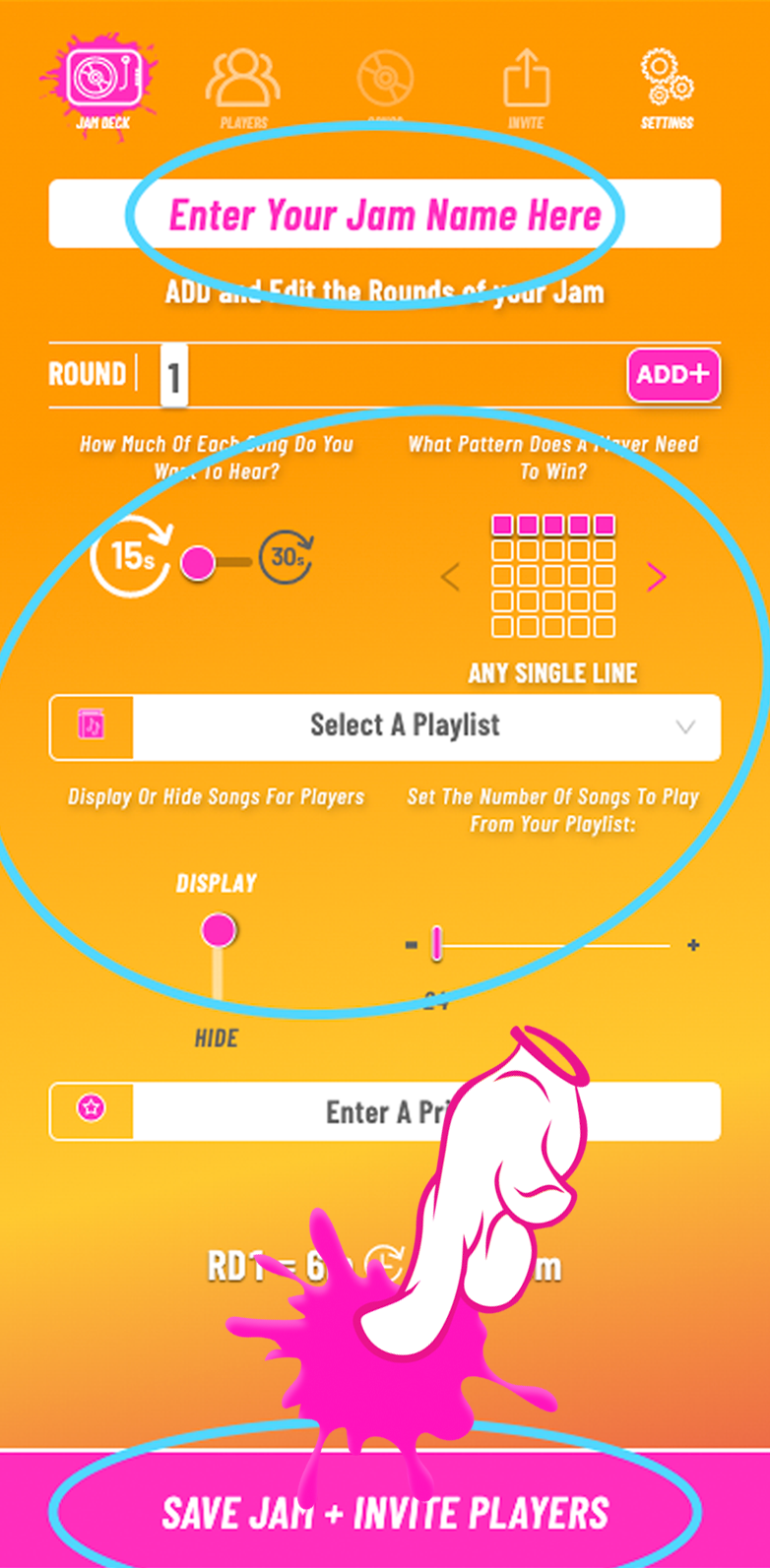
Log in & Launch: Open your Jindo dashboard in Google Chrome and click CREATE A JAM.
Set Your Round Rules: Pick from 70+ clean playlists, select your winning pattern, and click SAVE JAM + INVITE PLAYERS.
Download or Display: On the Invite screen, tap DOWNLOAD QR to save a crisp, high-resolution PNG file to your device, or click COPY LINK to share your custom web URL!


The 3 Pro Ways to:
USE Your QR Code in Venues
Where you put your QR code helps your host lobby fill up before the first song drops!
📐 Table Tents & Bar Tops: Place reusable Jindo table tents on every dining surface. As patrons sit down for food and drinks, they can scan the table code immediately with their smartphone camera—no app downloads or accounts required.
📺 Venue TV Screens & Projectors: Output your host screen or pre-show graphic loop to venue monitors. A giant on-screen QR code lets players across the room join directly from their tables.
💬 Virtual Stream Chat: Hosting over Zoom, Microsoft Teams, or Twitch? Simply paste your direct jindo.live/URL into the meeting chat for instant 1-click entry!
🚀 Ready to try qr quick join?
Say goodbye to lost pens, paper waste, and slow onboarding. Step into the cockpit with a platform built for maximum speed and zero prep friction!
Start your 30-day free trial of The Jindo Entertainment System™ today. NO promo code required. Cancel anytime.